Mastering SEO is a tough job, and if you are new to SEO, most likely you feel lost in countless optimization tips and techniques.
Well, SEO is much like a puzzle. You need to collect all its multiple pieces (content, backlinks, etc.) in order for them to start working together. However your SEO efforts are lost in vain unless you build your pages in the right, SEO-friendly manner. But how do you do that?
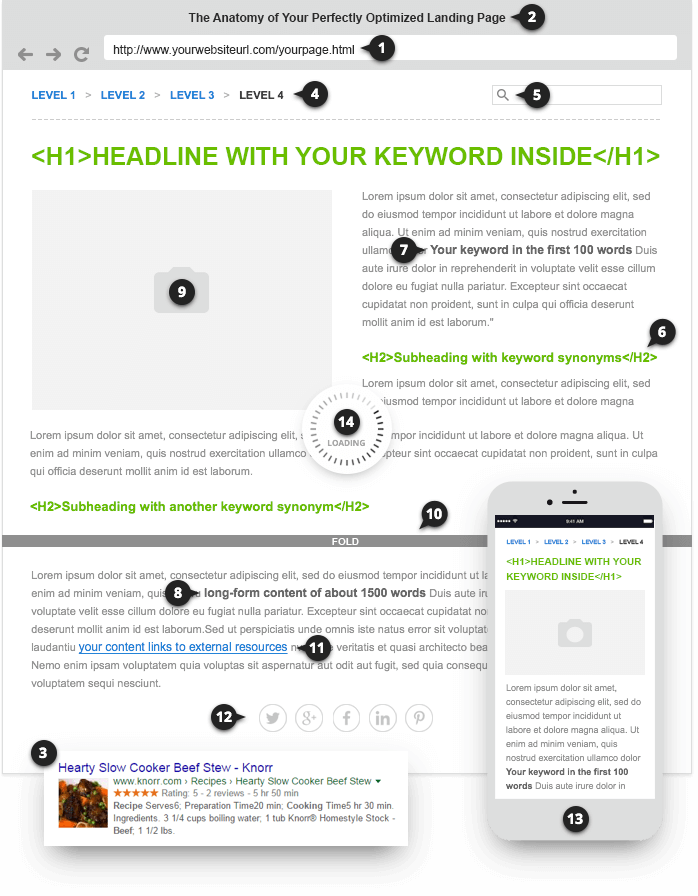
Even though there is no exact formula that makes your page guaranteed Google's #1, there are some common rules of thumb to increase your chances to succeed. So, let's look at them one by one and optimize each element of your page.
1 Proper URL formatting
2 Relevant, keyword-rich title
3 Schema markup
4 Breadcrumbs
5 Internal site search
6 Optimized headings (H1-H6)
7 Keywords in the main content
8 Content length
9 Multimedia
10 Above-the-fold content
11 External links
12 Social share buttons
13 Mobile friendliness
14 Page speed
1. Proper URL formatting
Consistent and easy-to-navigate URLs are preferred by both search engines and human visitors. And though the best practices mentioned here are not "a must", it's a good idea to try to stick to them whenever possible.
Use keywords
Many SEOs believe that the influence of keyword-rich URLs on rankings is getting lower over time, however keywords in the URL are still an important factor in determining your page's CTR, as they show up in search results, and serve as one of the most prominent elementssearchers consider when selecting which site to click.
A nice side effect of having keywords in your URL is that when people (say in forums) link to your site with the URL as a link, you thus get your keywords in the anchor text of your backlinks.
Keep URLs readable and avoid special symbols
As a rule of thumb, try to avoid extraneous characters in the URLs — such as &, %, $, and @.
Your go-to symbols are slashes to separate folders and dashes, or underscores to separate words (note that if you separate keywords with spaces, they will be rendered in the URL as 20%, which makes the URLs barely readable.)
Mind the length
Shorter URLs are, generally speaking, preferable. You don't need to take this to the extreme, and if your URL is already less than 50-60 characters, don't worry about it at all. But if you have URLs pushing 100+ characters, there's probably an opportunity to rewrite them and gain value.
If you're building your page URLs based on the title of your post, think of cutting down on stop words (and, but, a, the, and others) to make them shorter and more readable.
Also, try to avoid an excessive number of folders — use your folder structure to show the hierarchy of your content.
ex. URLs for your company website:
http://example.com/contact/
http://example.com/about-us/
ex. URLs for an ecommerce website:
http://example.com/product-name/
http://example.com/category-name/product-name/
ex. URLs for your blog:
http://example.com/post-title/
http://example.com/category-name/post-title/
http://example.com/mm/dd/yyyy/post-title/
http://example.com/post-title/three-digit-ID/
How to check
1. Launch WebSite Auditor and create a new project for your website.
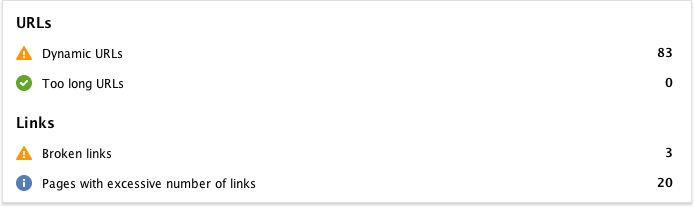
2. When the software has collected all your website pages, switch to Site Structure -> Site Audit dashboard to easily spot any dynamic URLs you currently have, and find too long URLs you may consider rewriting.
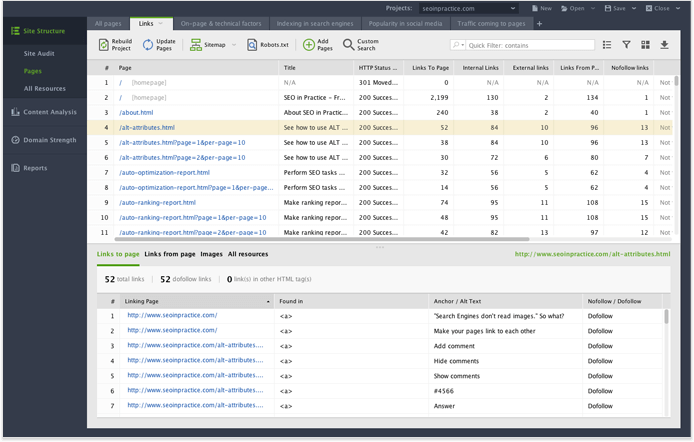
3. Also you get the full list of your website URLs for a deeper analysis in the Pages dashboard of the software.
2. Relevant, keyword-rich title
SEO-wise, the title tag is one of the most important page elements. It lets search engines know what your page is about, and the tag's contents are commonly used as part of your listing's snippet in search results.
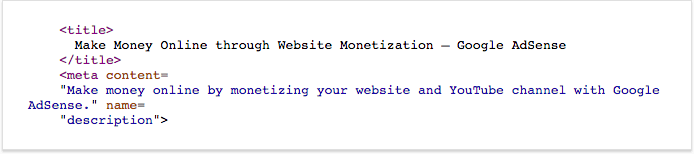
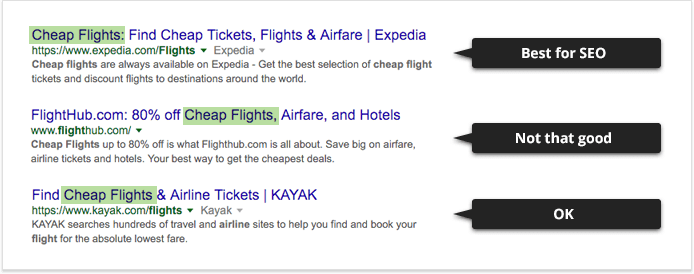
And if you ever had doubts of its influence on search results, have a look at a nice example of optimized title tag from Google itself — go to the AdSense home page and see how Google has optimized the title for "make money online" phrase.
Place keywords at the beginning
The closer your target keyword is to the beginning of your title tag, the more keyword-relevant your page will be considered by search engines. Try to always start your title with your keywords to emphasize their importance.
Use character savers
If you need to squeeze more text in the title, you can replace the word like "and" with the ampersand (&) symbol, "or" with the slash (/) or "copyright" with ©. Remember to implement special chars using HTML entities (& with & © with © etc.)
Treat your title as an advertisement
Keep in mind that your title tag, shown in the organic snippet, is much like an advertisement — the more compelling your ad is, the more clicks you will get from search engines. So don't forget about the fundamental ad copy tactics:
- Low price reference — to show you're a price leader on the market.

- Freshness reference — to show your content is truly up to date.

- Volume reference — to show how comprehensive and impressive your content is.

How to check
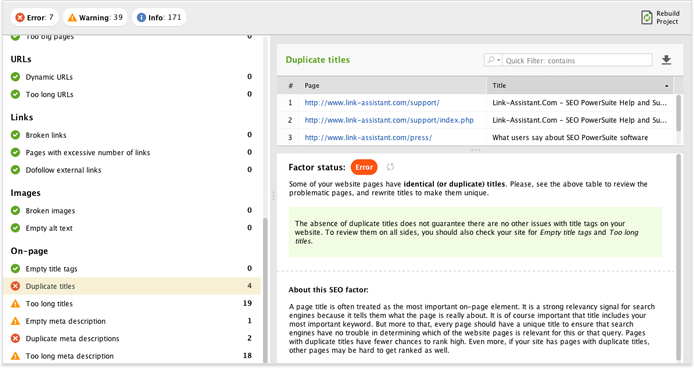
In WebSite Auditor, you can audit the list of your page titles to find any missing, duplicate and too long titles.
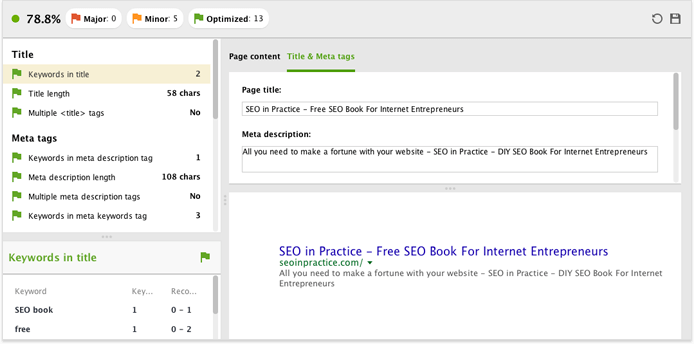
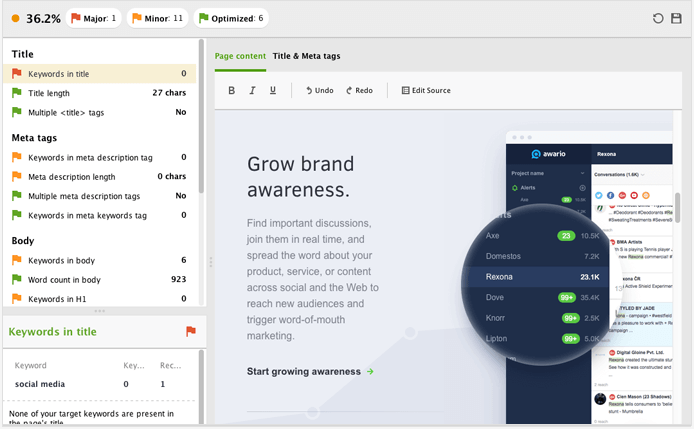
But more to that, in the Content Analysis module, you can go to Content Editor to test different titles for your page and see how they will look in Google's SERPs.
3. Schema markup
It's important to understand that Schema markup is not a ranking factor yet. However, Google can use your marked up data to form a rich snippet in search results.
A rich snippet has a huge potential to increase your listing's CTR. And a higher CTR, in its turn, is likely to give you a positive ranking boost.
Google's rich snippets can include images, ratings, and other industry-specific pieces of data in addition to the classic title, URL, and description.
They can be used for different kinds of content, such as products, recipes, reviews, and events. Depending on the type, you can add several niche-specific rich snippet elements, such as cooking time and nutritional information for recipes.
However, the thing to remember is that using schema properly requires some extra skills. And the two main options we recommend if you're dealing with Schema for the first time are:
Use a plugin
If your website is built on WordPress, the easiest way for you to create Schema is a plugin, such as All In One Schema.org Rich Snippets.
Use Google's Schema generator
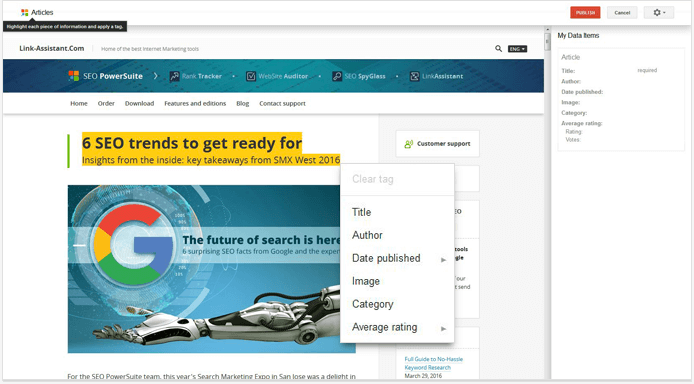
A universal way to create Schema (regardless of the type of your website) is Structured Data Markup Helper. Using this tool is very simple — you can assign specific Schema properties to the text that you highlight on the page preview.
When finished creating your Schema markup, you can always preview your snippets by copying and pasting your page's source code into Google's Structured Data Testing Tool.
How to check
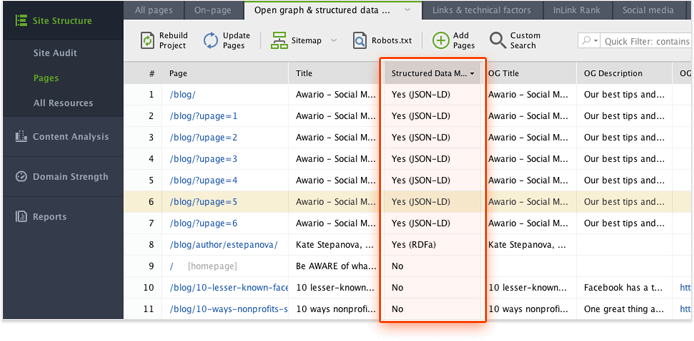
When running your pages' technical audit in WebSite Auditor, you can see if this or that page already has structured data markup in place.
To do that, go to Site Structure — > Pages and switch to Open graph & structured data markup.
4. Breadcrumbs
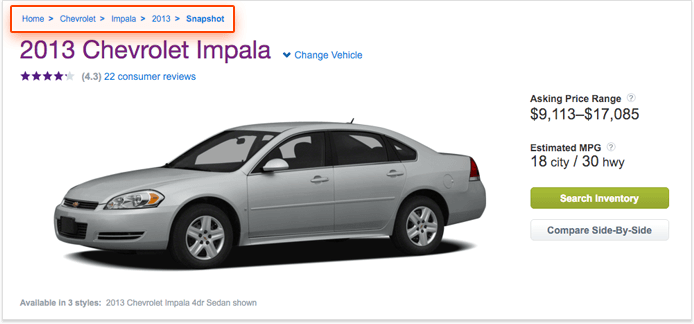
A breadcrumb is a simple menu of internal links located at the top of the page to indicate a user's current position in the hierarchy of your website.
First, it allows users to quickly navigate the website and understand how "deep" they are from the home page or main section page.
Second, breadcrumbs become an additional way for you to better explain to search engines what your pages are about and get an extra SEO benefit.
And third, Google is using breadcrumbs in their search results.
To help search engines identify your breadcrumb hierarchy, you can use structured data markup to tag the different components that make your breadcrumb menus.
How to check
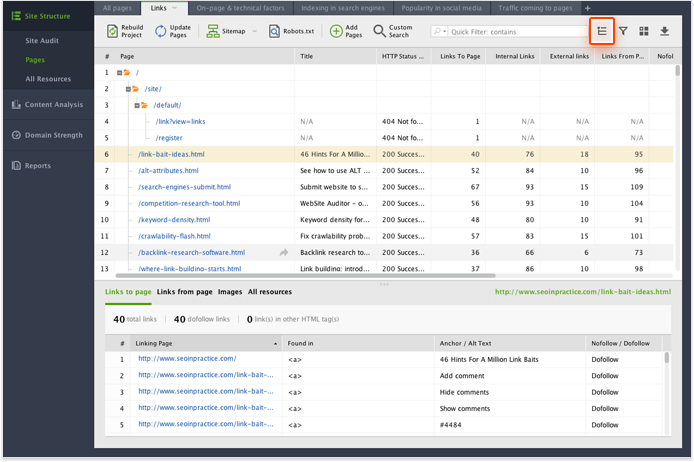
To get a quick overview of your current website structure and get a better idea of how to arrange breadcrumbs on your website, in
WebSite Auditor's
Pages module, click on the

button.
This way you'll get a list of pages presented in a hierarchical tree-like structure:
5. Internal site search
Internal search lets a visitor search the content they need within your website. And if your website is over 20 pages, having a search box in place is definitely a good idea for you.
Site search can be seamlessly integrated with Google Analytics, making it easy to view the search queries that users are entering into your search bar. You can follow these steps to link your site's search to Google Analytics reporting.
Reduce bounce rates
Quite often visitors land on your site from Google not on the page that suits their query best. And not seeing the content they were looking for, the searchers bounce back to Google, thus telling the search engine that your page is not the best one to rank for that query. If your website provides an easy way to find that desired information, your visitors are much more likely to stay on the website. And the internal search option is a great way to accomplish this.
Find new SEO keywords and ideas for content production
It's very likely that users are typing the same (or similar) queries into your site's search bar as they are typing into Google and other search engines. It's also very likely that while mining through these queries, you'll find new keywords that you'll want to target. More to that, internal search queries provide insight into how users are searching for your existing content and show you what content they expect or hope to find on your site. By digging into this data, you can find what content you are currently missing on your site.
6. Optimized headings (H1-H6)
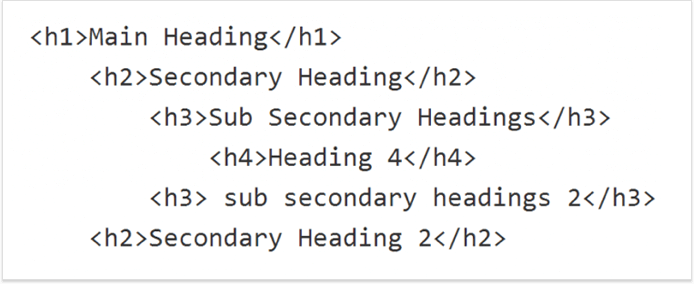
HTML Heading tags (H1-H6) are used to isolate each section of your content and show its hierarchy within the whole page.
Heading tags are a strong relevancy signal to search engines, so it's a good idea to include your keywords in some of them.
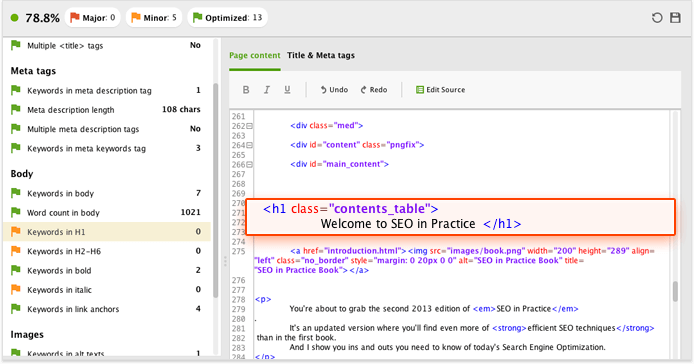
The H1 tag is your page's main heading, and by far the most important one. So first, you need to make sure that you do have an H1 tag on your page (most CMS's, like WordPress, will automatically add the H1 tag to your blog post title. However, even in WordPress, some themes can override this setting, which you may want to fix.) Second, make sure you have one of your target keywords in there.
It is also recommended to have no more than one H1 tag on each page, since using a few of them can potentially dilute the SEO power of the tag and the prominence of the keywords included into it.
Use H2-H6 tags for less important titles on the page — to separate the subordinate parts of your content. And you can use as many of them on your page as it is required by the size of the page and your content structure.
How to check
For each page you analyze, WebSite Auditor will give you tailor-made advice on optimizing the heading tags based on your top-ranking competitors' example.
You will then be able to edit each of the tags in the software's Content Editor to match your competitor's best practices.
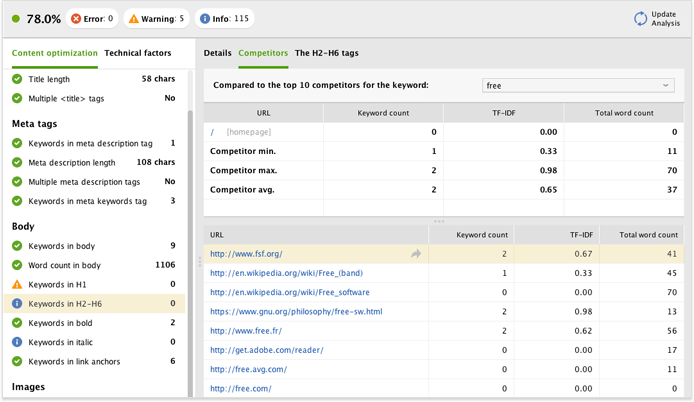
7. Keywords in the main content
As mentioned above, Google gives extra weight to the words in your heading tag, however it's also important to have your main content optimized.
Place keywords in the first 100-150 words of the article
This is something that you probably do naturally. But a lot of people start their posts off with a long intro and use their keyword for the first time in the middle of the post. It's better to drop your keyword somewhere in the first 100 words or so. That helps Google understand what your page is all about.
Use all kinds of synonyms and related words
Remember the Hummingbird algorithm update? The one with which Google learned to recognize the meaning behind a search query and give a common answer to a number of "different-in-keywords" but "same-in-meaning" queries? This update changed the way SEOs optimize pages — now we no longer think "single keyword optimization", but try to make our pages relevant for a whole group of synonyms and related terms.
So, adding all kinds of related keywords will help you improve your pages' rankings and avoid the keyword stuffing issues.
How to check
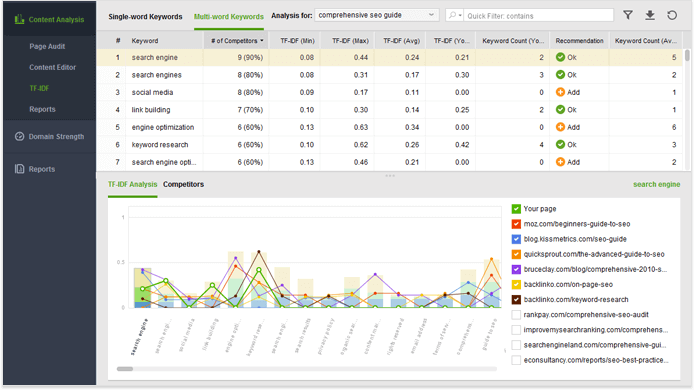
So how do you discover the relevant terms and concepts that you may use in your page's content? You can do that using the TF-IDF tool in WebSite Auditor.
Just jump to Content Analysis > TF-IDF, select a page you're about to optimize, and enter your main target keyword(s). The app will now go to Google's search results to pick the 10 top ranking competitors for your keywords, analyze the content of each of the competitors, and calculate the TF-IDF for each term's usage on each page.
In a moment, you'll see a table of topically relevant terms (both single- and multi-word), sorted by the number of best-performing pages that use them.
The Recommendation column will give you usage advice for each term that appears on the pages of 5 or more of the competitors:
- Add if you aren't using an important term at all;
- Use more if the term's TF-IDF on your page is below the competitors' lowest value;
- Use less if the term's TF-IDF is above the competitors' highest value.
You can implement these recommendations and edit your page right in WebSite Auditor's Content Editor.
8. Content length
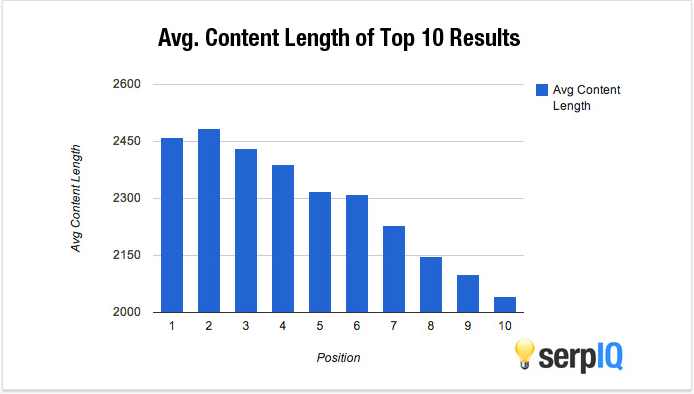
A number of SEO studies have showed that longer content generally ranks higher. So, as a rule of thumb, aim for at least 2,000 words when targeting competitive keywords.
However it's important to understand that the elusive "ideal content length" may vary a lot from niche to niche. So, for a realistic reference on the right size for your content, it's best to look at pages that already rank well for the keywords you're targeting.
How to check
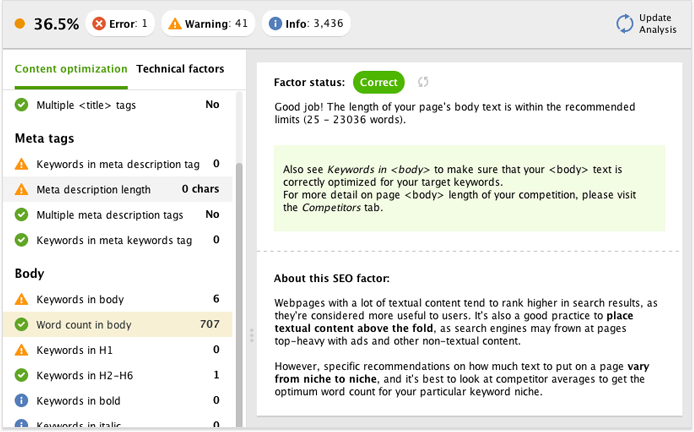
In WebSite Auditor's Content Analysis module, look at Word count in body. When analyzing your page, the software also looks at the top 10 ranking pages for the keyword you specify, and determines an optimal word count range for your page's content based on this data. If your page's content falls within this range, you'll see a green Correct sign next to this factor.
9. Multimedia
Text can only take your content so far. Engaging images, videos and diagrams on your pages can definitely improve user experience, and thus reduce bounce rate and increase time on site.
However, besides optimizing user experience, you can use these elements for SEO benefit. For instance, properly optimized images are yet another way of telling search engines what your page is about.
Optimize your images Alt and Title tags
The alt tag is used by search engines to tell what the image is about, and every image on your page should have an alt text.
The title attribute is shown as a tooltip when you hover over the element. Even though the title attribute is not required, you may still consider using it on your pages.
Consider adding a video transcript
If you're placing a relevant piece of video on a not-that-rich-in-content page of your website, consider adding the video transcript as additional textual content on the page.
How to check
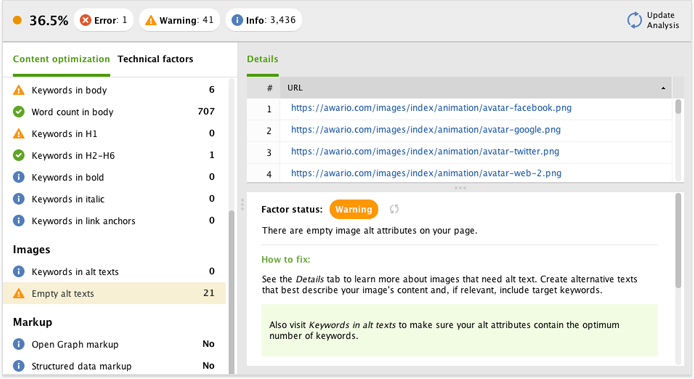
In WebSite Auditor's Content Analysis module, go to Page Audit and check the Images section to see if any of your images lack alt text (Empty ALT texts), and how often your keywords are used in the alternative attributes on the page (Keywords in ALT texts.)
10. Above-the-fold content
The term "above the fold" was initially inherited from newspaper editors, who were preoccupied with getting their content to look perfect above the physical fold in the paper.
In the same manner, website designers and copywriters have always aimed at making this content eye-catching and compelling enough for the visitor to continue reading beyond the scroll.
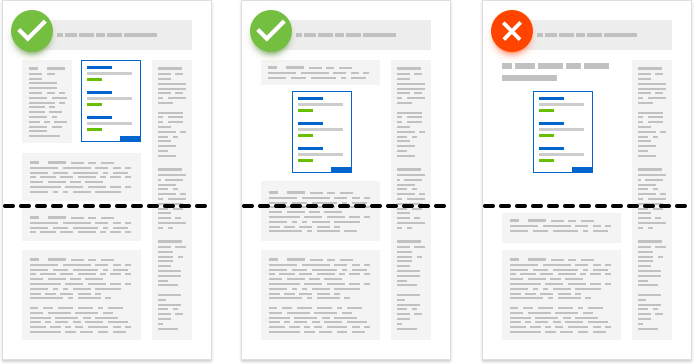
However, after Google's page layout update, above-the-fold content became an SEO concept just as well — the search engine started penalizing sites for lots of ads (and not much content) above the fold.
So, while display advertising may be an essential revenue model for your websites, too many ads may have a negative impact on search rankings. Ensure any display advertising is non-intrusive and your pages have enough content above the fold.
11. External links
Outbound links to related pages is a relevancy signal that helps Google figure out your page's topic. It also shows Google that your page is a hub of quality info. Google may not have explicitly stated that this improves your rankings, but many SEO experts believe so from their personal experience.
A good rule of thumb for most sites would be to link out 2-4x per 1000 words. However, you need to keep in mind that the sites you link out to reflect on you (make sure to link out to authority sites whenever possible.)
How to check
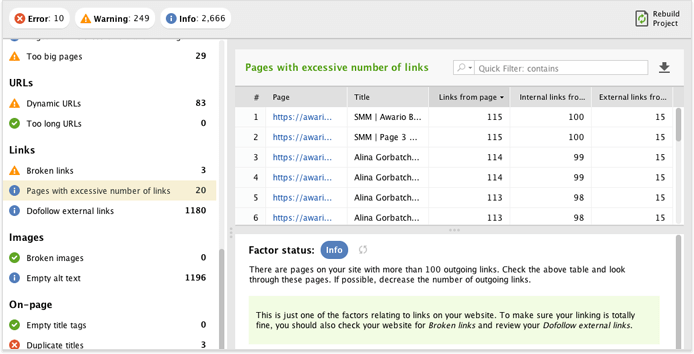
Same as with everything in SEO, overdoing is not the right pass to go with your external links. Having a really large number of outgoing links on a page (namely, more than 100) could be overwhelming to users. Besides, when a page has too many outbound links, this is often a sign of a low-quality site or a page that sells links, which could send the wrong kind of signal to search engines.
In WebSite Auditor's Content Analysis -> Page Audit module, look at the Pages with excessive number of links factor. The software will signal you if you have too many outgoing links, as well as give you the exact list of those outgoing links.
12. Social share buttons
Social signals may not play a direct role in ranking your site. But social shares generate more eyeballs on your content. And the more eyeballs you get, the more likely someone is to link. So don't be shy about placing social sharing buttons prominently on your site.
In fact, a study by BrightEdge found that prominent social sharing buttons can increase social sharing by 700%.
Be strategic about social share buttons
Even though social share buttons are a great way to generate referral traffic, they can also slow down your page load time (because most share buttons are javascript-based, meaning they're generating an iFrame on the page.)
So, try to use social share buttons strategically on your website. For example, opt-in landing pages may not be suitable candidates for social share buttons (because you want visitors to respond to the CTA on that page, instead of getting distracted by social sharing.)
Don't forget about Open graph
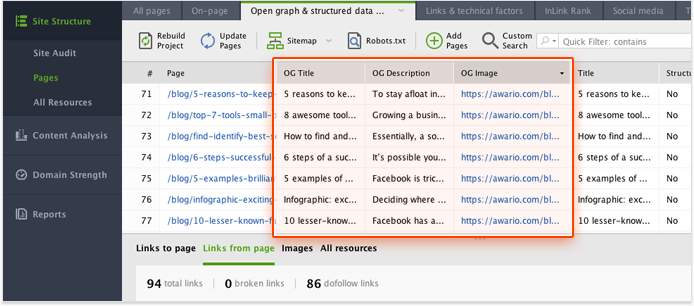
Open Graph is the markup that enables any web page to become a rich object in a social graph. It is used by Facebook, LinkedIn, and Google+ to add a unique title, description, and image to your page's snippet on these social networks. While it is unlikely that Open Graph markup has a direct impact on SEO, it can be incredibly useful for your social media efforts (which, in turn, are likely to affect SEO in some way).
The only problem is — as you keep adding new content to your site, it gets harder to keep the markup on each of your pages in order.
How to check
The easy way to audit your pages' Open graph is right in WebSite Auditor's Open graph and structured data markup tab (under the Pages dashboard). Here, you can make sure all your Open graph titles, images, and descriptions are set up correctly.
13. Mobile friendliness
With over half of Google searches coming from mobile devices, Google's increasing focus on improving mobile search results. From a nice-to-have, mobile friendliness has turned into a must — if your page isn't optimized for mobile devices, it's likely to be discarded from mobile search results completely.
Responsive design is perhaps the simplest and most widely used solution to go mobile friendly — and it's the one Google recommends, too. If you use WordPress (or any CMS, really), choosing a responsive template for your site is about all it takes. You're in for more work if your site is HTML-coded with no CMS in place. However, there's some documentation available on adapting responsive design for web developers. It might take a bit of work to get every aspect right, but it's an investment that'll definitely keep paying off increasingly.
Another option for you to consider is, surely, Accelerated Mobile Pages (AMP for short) a new Google's "standard" for building web content for mobile devices that is likely to become one of the cornerstone concepts of mobile optimization in the near future.
How to check
If your page is mobile friendly overall, you might want to make sure no minor issues are left unnoticed.
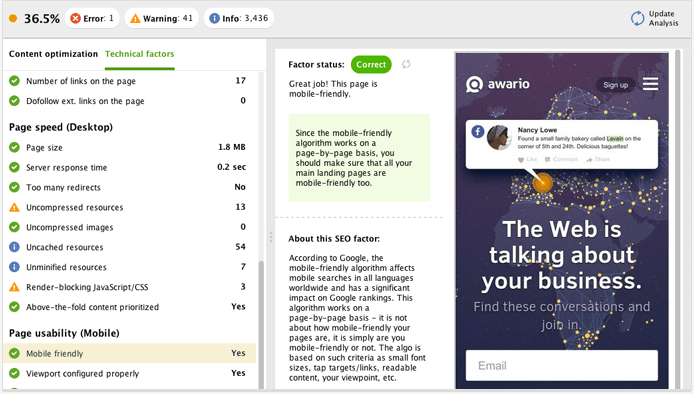
To check if your page passes Google's mobile friendly test, go to Content Analysis -> Page Audit in WebSite Auditor. Switch to the Technical factors tab in the upper left corner and scroll to Page usability (Mobile) on the list of on-page factors on the left. Clicking on Mobile friendly will show you what your page looks like on mobile devices.
The factors in the Page usability (Mobile) section are the exact features Google believes mobile-friendly pages should have, according to Google Developers' PageSpeed Insights, so you'll want all of them to be marked with a green Correct sign.
14. Page speed
Page speed refers to the amount of time a page needs to be completely loaded. Page speed depends on many different factors, from host to design and can be optimized.
Page speed matters to Google
Google has officially confirmed that it uses page speed in its ranking algorithm. And more to it, page speed can also influence your SEO indirectly — search engines will likely crawl fewer pages if your site is slow due to the allocated crawl budget. This, in turn, could negatively affect your site's indexation.
Page speed matters to visitors
While page speed is important to Google and for your rankings, it does also impact your user experience. And it is not a secret that a positive user experience often leads to better conversions. Slower pages tend to have higher bounce rates and lower average time on page. Research shows a 1-second delay in page load time can result in a 7% reduction in conversions.
So what's the page speed you should aim for? Google's mentioned they expect pages to load in 2 seconds or less.
How to check
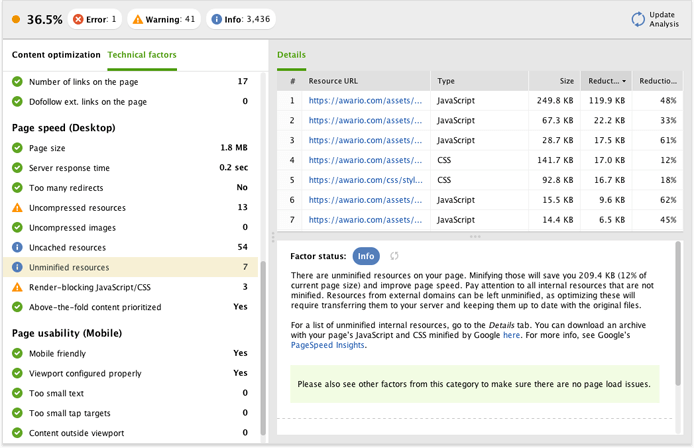
In WebSite Auditor's Content Analysis module, switch to the Technical factors tab and scroll the list of factors to Page speed (Desktop). Under this section, you'll see the exact list of speed-related factors Google's looking for in webpages, according to their PageSpeed Insights.
You'd want to concentrate on any factor under the Page speed section that has an Error or Warning status. Click on any of the factors you'd like to improve on for how-to-fix tips.
If there're any Uncompressed images or Unminified resources found on your page, jump to the Recommendation tab for a ready-made compressed version of your images and JS/CSS. Follow the link to download the lighter version of those, and feel free to upload them to your site right away.
All in all, these are the most important things to consider in on-page SEO for your pages. If you take into account most of the factors listed above, you will build a strong base for your future off-page SEO efforts.