Meet The Author

Main Uddin is one of the pioneer blogger cum e-marketer from North East India(Assam).He is also a Skilled web Developer and regular columnist for various news portals around the globe.Read More

author

SMF forum footer & header customization and marketing success

Leave a Comment
Simple Machines offers free open source software such as SMF, the powerful and easy to use community forum written in PHP as the message-board program developed by The Simple Machines Organization. This forum can be used as a successful marketing tool as thousands of internet users like to use it for their simple using methods.


SMF forum footer and header customization


Changing the header title of your board is usually one of the first changes people usually make to customize your board. This helps give your site a bit of identity and can help set it apart from other websites. A good title can also help with your site's Search Engine Optimization, known as SEO. Follow the article below to learn how to edit your board title for your SMF 2.0 website.

1. Log into your SMF admin dashboard.

From the entry page, click Admin from the upper menu. This will reveal a second menu just underneath the first. Hover over Configuration and then hover over Server Settings. Click on the General option from the popup menu.

2. This lands you on the General Server Settings page. From here you will see a few settings. Look for theForum Title field and enter your new site title there.

3. Once you are happy with your new title, click on the Save button located in the lower right hand corner of the screen. This will save and activate your new header title.

Before
 
After


You can also remove the links and version number as well, giving you some more space. While technically allowable to remove the copyright, it is considered rude to do so since Simple Machines allows their program to be used free of charge. Follow the instructions below to find out how to modify the footer in your SMF 2.0 website.


Changing the footer content in SMF 2.0

1. Log into your SMF admin dashboard.
2. From the main page, click on the Admin link from the upper menu. This brings a second menu that appears just below the first. From there, hover over Configuration and click on Current Theme from the popup submenu.
3. A third menu will appear on the screen below the second. Find and click on the Modify Themes link to continue to the next screen.
4. You will see the different themes you have available under the Modify Themes section. Find the theme you want to modify and click on the Browse the templates and files in this theme link.
5. This brings you to a page where you will see various sections of code. Do a find (ctrl+f) for the word 'footer' and locate the section that has the following code:

<div id="footer_section">

This is the beginning of the footer area code. From here you can edit the code with HTML. For our example, we will add some text with our own copyright. You can see the line we added below highlighted in blue.
6. After adding the code, select the Save button at the bottom of the page. You can now refresh your site to see the either the new content or removed content.

Before
 
After

Webmasters can get full tutorial to set up Simple machine forum : Video

1. Forum Tutorials - Simple Machines Forums, Tutorial and Overview 2. How To Customize Your SMF Forum (+ Commentary)
Read More

Set up Online Shop with the Help of Shopify Instantly

Leave a Comment
Here’s a step-by-step guide on how to build your own online shop with Shopify.
I’ll cover all the basics and bit more, so you could get your online store up and running ASAP (We’re all busy, I know).
If you get stuck (I doubt you will), leave a comment or get in touch with me via contact form.
Let’s get started…

Set up Online Shop with the Help of Shopify

Signing up with Shopify and starting your store couldn’t be any easier and they even offer a 14 day free trial to get you going.
To launch your Shopify store, you must sign up for an account.

1. Sign Up with Shopify

To start, visit Shopify.com. Use the signup form to start creating an account.
Enter the required details and then click the ‘Create your store now’ button.
Your store name needs to be unique or Shopify will ask you to choose something else.
After this initial screen you’ll be asked for a few more details, these include your name, address, country and a contact number.
You will also be asked if you have products and, if so, what you aim to sell. If you’re just trying out Shopify to see if it works for you, you can select ‘I’m just playing around’ in the ‘Do you have products?’ dropdown, and ‘I’m not sure’ in the ‘What will you sell?’ section.
Once complete, click ‘I’m done’.

2. Start Setting Up Your Online Shop

After you’ve signed up you’ll be directed straight to your store admin screen. Now you are ready to start customising your store’s look, uploading products and setting up payments and shipping.
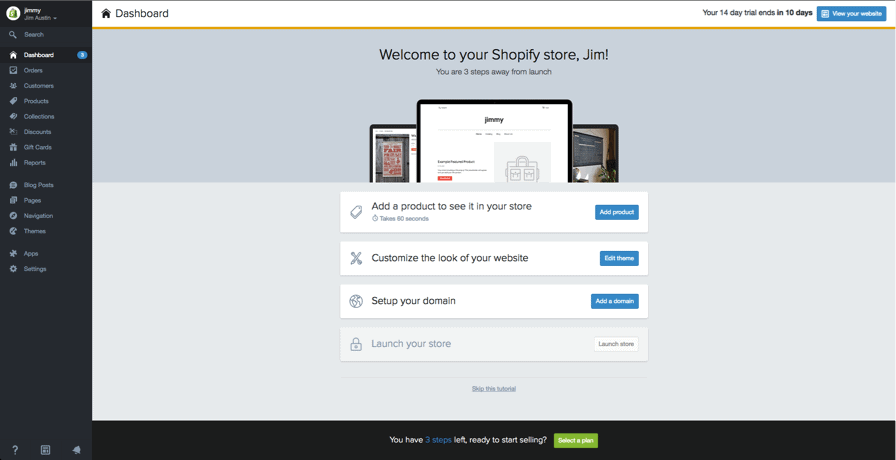
Shopify homescreen Your home admin screen tells you all you need to know to get you up and running.

3. Choose a “Theme” or “Layout”

Shopify has its own official theme store. These themes are all guaranteed to have full support from the designers so you know your store is in good hands.
All themes come with a comprehensive list of modifications you can make without having to touch a line of code. The premium themes come with more modifications, but that’s not to say you can’t achieve a great looking site with a free one. These changes are outlined in the next section.
If you want to make wholesale changes to a theme, there are very few limitations on what can be achieved by accessing the HTML and CSS. Don’t worry if you haven’t got any coding experience. Shopify has an international team of design agencies they call ‘Shopify Experts’ that you can hire to fully customise your site.
To find a theme that suits your needs we recommend the following:

1. Browse the Theme Store

Log into Shopify and visit the Shopify Theme Store at themes.shopify.com. Here you’ll find over 180 theme variations to choose from, including a good selection of free ones.
You can filter by paid or free, industry and by features. You can also sort themes by price, popularity, and most recent.
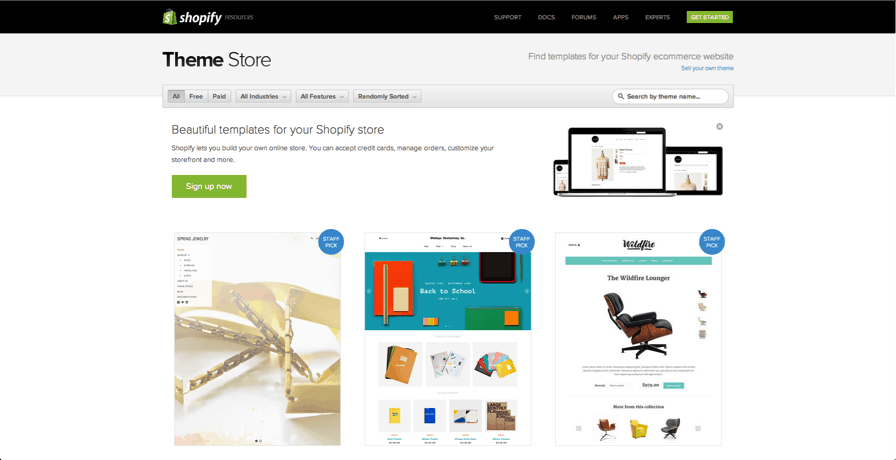
browse-theme-store The Shopify Theme Store.

2. Check the functionality and reviews

Once you’ve found a theme you like, click on the theme’s sample image. You’ll be given more information about the theme, such as whether the theme is responsive/mobile ready among other features.
Scroll down to read some reviews to find out what e-tailers using the theme think of it.

3. Preview the theme

To see the theme in action, click View Demo. You’ll see this below the green ‘Preview Theme in your Store’ button.
If the theme comes in a range of styles, you can also view demos of the different styles by clicking on them.

4. Get the theme

Once you’ve found a theme you like, click the green button.
Shopify will ask you to confirm that you want to install the theme.
Click Publish as my Shop’s Theme.
Don’t worry if you’re not 100% sure it’s the right theme for you. You can always change your mind later.
After the theme has installed, Shopify will let you know, and will give you the option to Go to your Theme Manager. Click this.
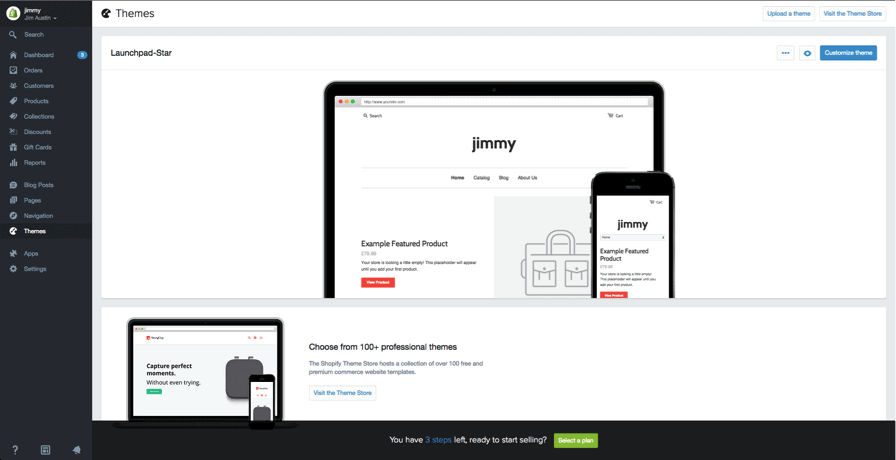
Your theme manager shows published themes (the one you installed or activated most recently) and unpublished themes below (previously installed themes).
finish your ecommerce store

4. Edit Shopify Settings

The majority of Shopify themes allow you to make simple changes that can massively change the appearance of your store, so you can rest assured knowing you won’t end up with a website that looks like a clone of thousands of other stores.
shopify store templates
These stores are all built using the same theme.
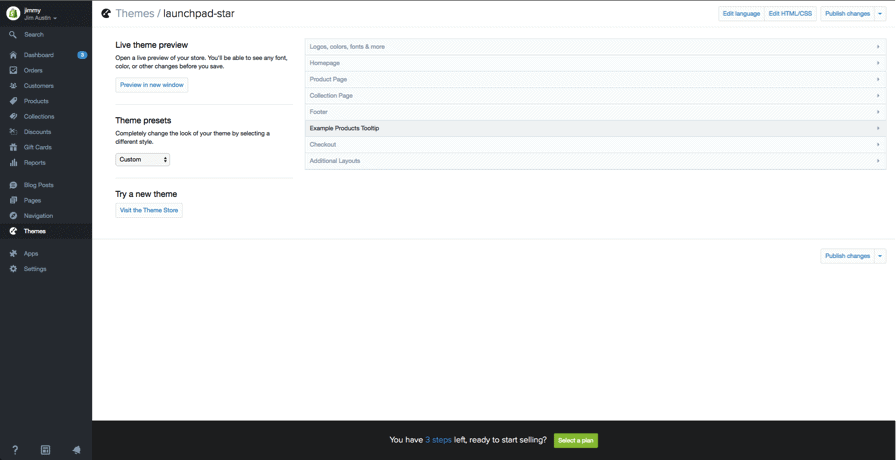
On your admin screen, select ‘Themes’ from the left hand navigation menu. On this page you will see your live theme in a box at the top, in the top right hand corner of that box will be two buttons. The first one is of three dots, which gives you some basic settings changes. One of these allows you to make a duplicate of the theme. We highly recommend you do this incase you make some changes you don’t like, then you can delete the duplicate and start again. The second button says ‘Customize Theme’. If you click that you will be taken to a page that controls all the basic functionality of your store. This is a great time for you to have a thorough play with the settings and test out all the features so you can find out what your site is capable of.
shopify custom theme settings
Your themes custom settings.
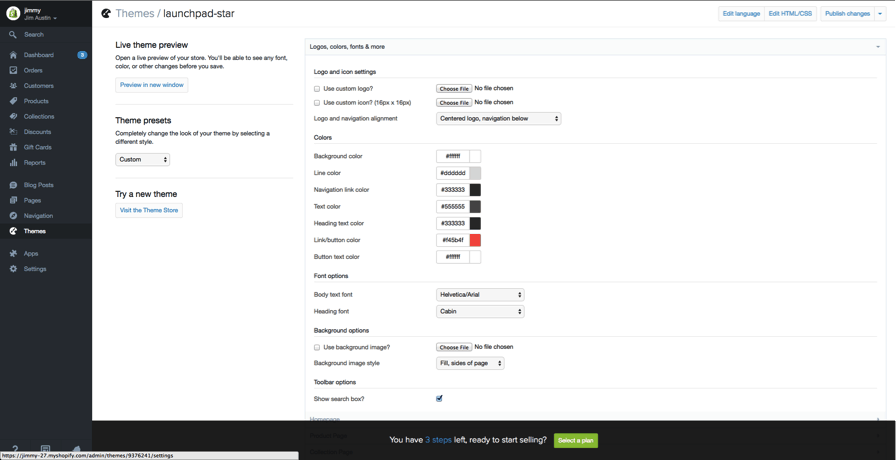
changing colours in your theme
Changing colours in your theme.
The most common features will include:
  • uploading logos
  • uploading slides to a homepage carousel
  • adding related item functionality to product pages
  • choosing how many items appear on each line of the collection pages
  • colour schemes
  • font choices.
Some themes will also allow you to reposition elements on pages such as showing product images on the left, right or center of the page. You can also choose whether you want to display social like/tweet/pin/+1 buttons.

5. Add Your Products to The Store

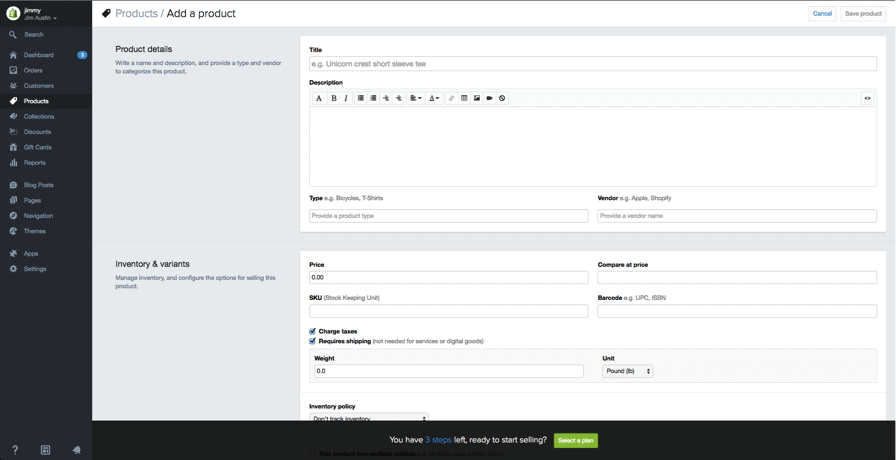
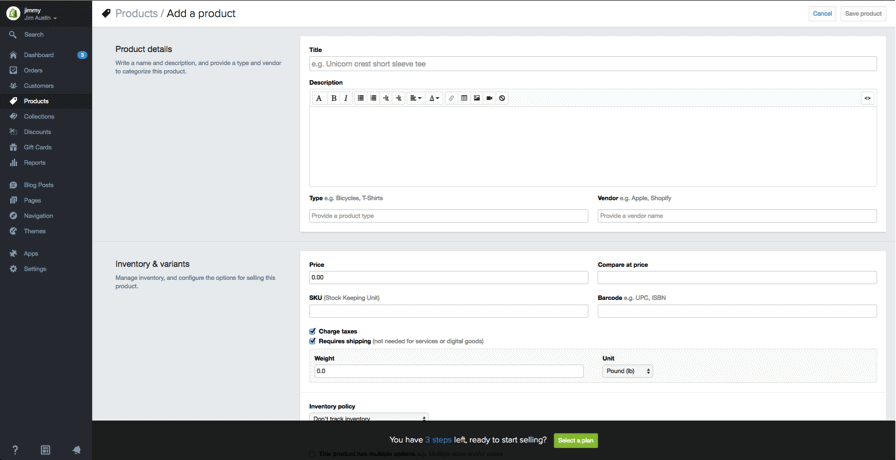
Again, navigating from the bar on the left select ‘Products’. You will then see a blue ‘Add a product’ button in the top right hand corner of the page. Use the following screen to add as much detail as needed about your products. Especially look at those that will help with SEO such as name, description and URL. Also include as much detail about variants as possible to help inform customers about your items.
This is also the screen where you upload product pictures. Once the images are uploaded you can rearrange them so don’t worry about uploading them in any particular order.
Your product screen
The Product screen. Make sure you fill out as much information as possible.
Product images can make a sale so make sure you show your products off to their best and highlight any special or unique features with close up photos. To keep your store looking tidy we suggest you keep all images the same dimensions. Unless of course you plan to make your collection pages look like a Pinterest board.
Once everything is filled out always remember to click the ‘Save product’ button in the top and bottom right hand corners.

Set up collections (group of products)

A collection is any group of products that have some feature in common that customers might look for when visiting your store. For example, your customers might be shopping for:
  • clothes specifically for men, women, or children
  • items of a certain type, such as lamps, cushions, or rugs
  • items on sale
  • items in a certain size or color
  • seasonal products such as holiday cards and decorations.
Products can appear in any number of collections. Usually, you would display your collections on your homepage and in the navigation bar. This helps customers find what they’re looking for without having to click through your whole catalog.
Your product screen
The Collection set up screen works in exactly the same way as the Product screen

Manual and automatic collections

When you add a new collection, you can select how products should be added to it. These are the two options:
  • Manually -
You add and remove products in a manual collection individually.
  • Automatically -
You can set up selection conditions to automatically include products that meet certain criteria.
Payment gateways
A payment gateway allows you to take payment from your customers via your website. The price and commission rate is important, but it’s also important to see what features they offer. Not all payment gateways are created equal.
You need to look at the following when choosing the right payment gateway for you.
payment gateways
  1. Transaction Fees
When you take a payment, some gateways will keep a small percentage or flat fee (or sometimes both) for letting you use their service. Compare these based on what your anticipated sales are.
  1. Card Types
You need to know what types of card are accepted by your chosen Payment Gateway. All accept VISA and Mastercard, while most accept American Express. Paypal is also becoming popular for online payments.
  1. Offsite Checkout
Some gateways will take the payment on their own servers via their own form. This means the customer is taken away from your checkout and they pay on the form provided by your payment gateway. They are then redirected to your confirmation page once the customer successfully pays. This allows you to have a bit more control of the checkout process. Now you can circumvent Shopify’s limitations in that they don’t let you customise the checkout other than with CSS.
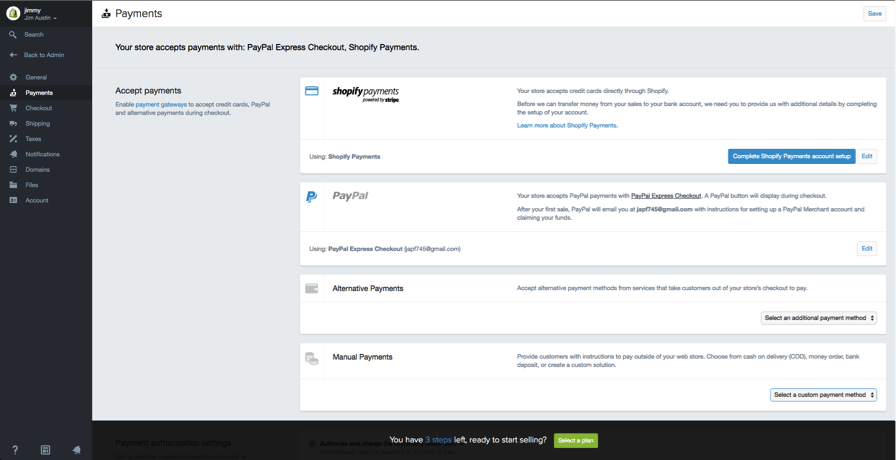
Payment gateway transaction fees are added on top of Shopify’s own transaction fees. However as of November stores based in the US and UK can use Shopify Payments. Depending upon your Shopify plan, you can save on these extra costs. Relative to your plan you will receive these highly appealing rates.
  • Basic 2.4% + 20p
  • Professional 2.1% + 20p
  • Unlimited 1.8% + 20p
Depending on how many transactions you make every month it could be worth upgrading to take advantage of these savings.
If you live in the US or UK your store will automatically use Shopify Payments. To complete this, click the ‘Complete Shopify Payments account setup’ button found in Settings > Payments. If you wish to use a third party gateway you can use the ‘enable payment gateways’ link on the same page.

6. Get Your Online Shop “LIVE”

Before your site can go live you need to add a few more details about your company and how you plan to make deliveries and pay tax.

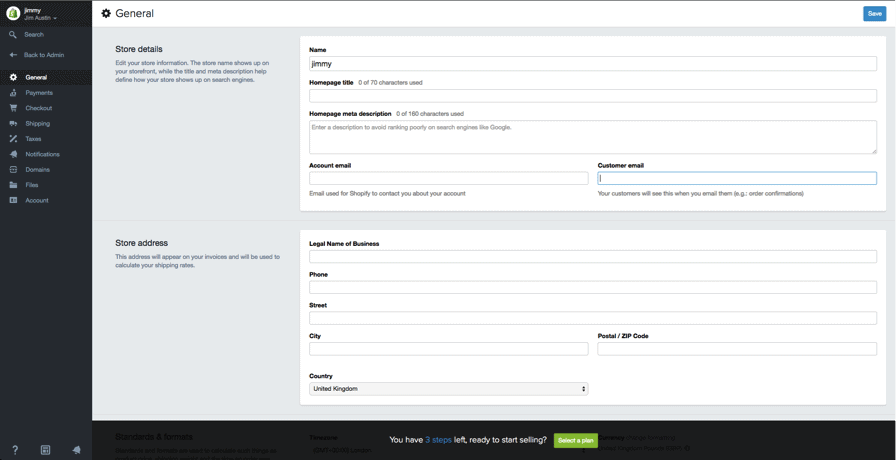
General

Make sure all your business information is filled out on this page. Also make sure to make use of the Google Analytics feature. This can prove to be an invaluable source for tracking your stores visitors.
general shopify settings

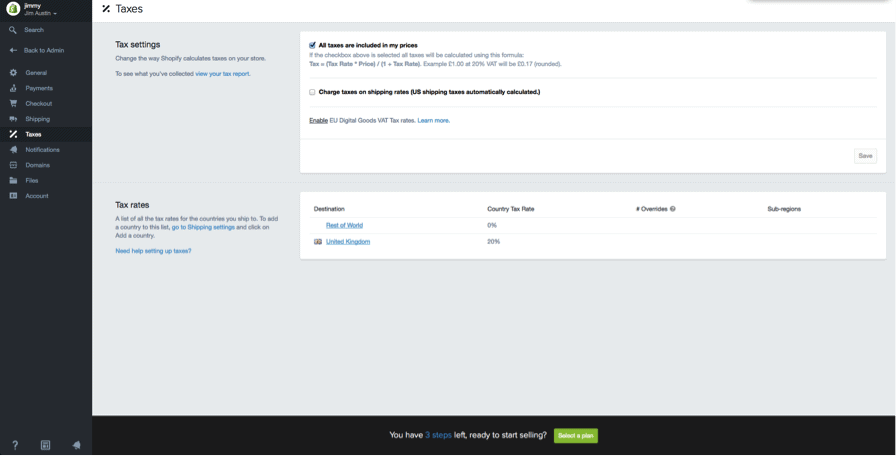
Taxes

taxes for shopify online store

  1. Go to the Products page of your admin
  1. Click on the name of a given product.
  1. Scroll down to the section called “Inventory & variants”.
  1. Click on the edit link next to your Product Variant to open a dialog window.
  1. Make sure the checkboxes next to Charge taxes and Requires shipping are checked if you need to include these with your products.
  1. Some stores won’t need to charge taxes or shipping on products like digital goods. On the other hand, a T-shirt store will likely need to charge both.
  1. If you are planning to ship your product to customers, make sure to enter the product’s weight in the appropriate field.

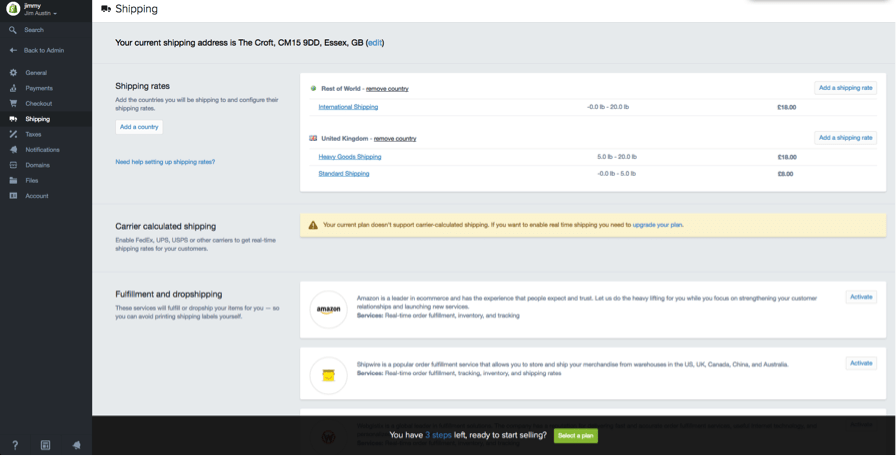
Shipping

If your shipping rates are too narrow, or you don’t give enough options, you may lose out on some sales. Shopify will only calculate a shipping rate for your customers based on the rules that you define in the Shipping page of the admin. To make sure you won’t lose any sales:
shipping
  1. From your store admin, go to the Settings > Shipping page.
  1. In the “Shipping rates” section, look to see if you have set a weight-based shipping rate and adjust it according to your product’s specifications.

Test your order system

To test your system you can simulate a transaction using Shopify’s Bogus Gateway.
To use the Bogus Gateway:
  1. From your store Admin, click Settings, then Payments to go to your Payments settings
  1. If you have a credit card gateway enabled, deactivate it before continuing. (Click Edit, then Deactivate, then confirm your deactivation.)
  1. In the Accept credit cards section, click Select a Credit Card Gateway to open the drop-down menu.
  1. Scroll down the list to Other, then click (for testing) Bogus Gateway.
  1. Click Activate (or Reactivate, if you’ve used the Bogus Gateway before).
  1. Go to your storefront and place an order as a customer would. At checkout, enter the following credit card details instead of genuine numbers:
Testing a real payment gateway with a genuine transaction:
  1. Make sure you’ve set up the payment gateway you want to test.
  1. Make a purchase from your store as a customer would, and complete checkout using genuine credit card details.
  1. Cancel the order immediately, to refund yourself and avoid paying transaction fees.
  1. Log in to your payment gateway to make sure the funds went through.

Is this free?

Yes – just be sure to cancel and refund the order soon after you place it.
If your billing cycle hits after you’ve placed the test order but before you cancel it, the transaction fees will appear on your bill. You can still cancel after paying your bill to Shopify, but you’ll receive the refund as a transaction credit on your account. You can use transaction credits to pay future transaction fees.

7. Consider Buying a Domain Name

To get your site live you’ll need a domain name. You have two choices for this. Firstly you can buy a domain from Shopify and it will be added to your store automatically. This saves you time, especially if you have no knowledge of hosting a website. These domains typically cost $9-$14 USD per year. Your second option is to purchase a domain from a third party such as GoDaddy. These domains start from $1.99 USD a year. The downside is that you’ll have to redirect the DNS records yourself which can seem daunting at first.
If you’re unable to come up with a good domain name, read my tips on how to choose a domain name.
Here are the steps to put your new Shopify store live on a third party domain name.
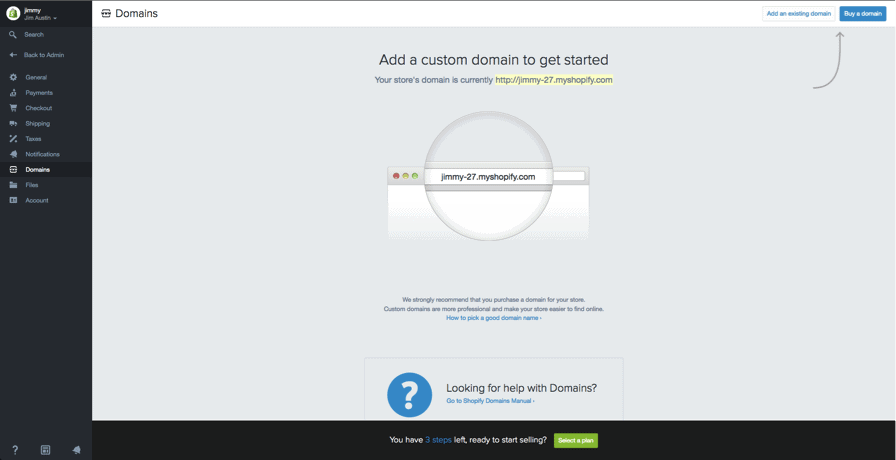
  1. Add the new domain in Shopify
In the Shopify admin, from the left hand navigation go to Settings and then Domainsand add your domain name using the ‘Add an existing domain’ button.
  1. Update DNS records
Login to your domain registrar and make the following changes to the DNS records:
  • Replace the @ or main A record with the following IP address: 23.227.38.32
  • Add or replace the www CNAME with storename.myshopify.com (i.e. your store Shopify link without the http bit, which you can see on the domains settings page)
  1. Remove any storefront passwords
Otherwise no one will be able to access your site even once it’s live.
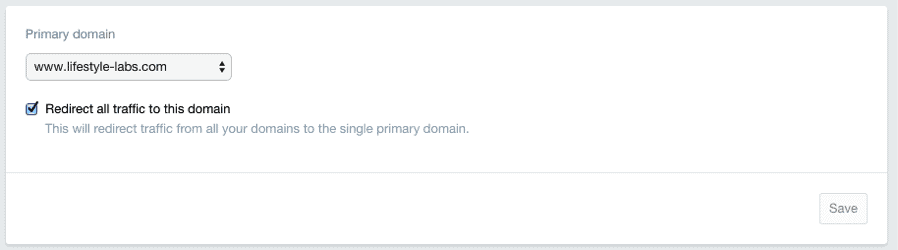
  1. Set as primary if relevant
Whilst in Settings > Domains, you can choose your main domain by using the dropdown at the top of the screen:
primary domain
Ensure that you also check the ‘Redirect all traffic to this domain’. This means that traffic to all other domains will be directed to your primary domain. This is crucial for good SEO.
  1. Adding other domains 
You can repeat steps 1 and 2 with other domain names you own. All domain names will redirect to the ‘Primary’ domain, which you can change at any time with the ‘Set as primary’ option next to each domain name.
Note that the number of domain names you own has no influence on SEO.
adding custom domains on shopify

Conclusion

And that is all there is to it. In theory you can have a great looking, unique and fully-functioning store in less than half an hour without having to be a web expert. This way you can spend most of your time marketing your product rather than having to maintain the site.

Alternatives for Shopify?

I’ve been mainly using WordPress & WooCommerce combo (cheaper & easier), but Shopify can be a good alternative.
For further reading: Shopify vs. WordPress (WooCommerce)
Furthermore, you can actually build an ecommerce site with website builders, too. If you want to check them out, read my website builders review here.
In regards to customisation, Shopify allows almost every aspect of their templates to be altered in some way. You can also change the functionality of most parts of your site. On top of this they also have the largest app store for added functionality. Comparatively, Volusion only has one template that can only have minor changes made to it.
The only real downside is not being able to fully customise your checkout. Shopify restricts access to this page for security reasons. However the checkout comes fully responsive, so it will work perfectly for customers shopping on mobile devices.

Read More

Marketers Refer Google Apps - Earn up to US$750 per referral- Start referring today

Leave a Comment
Mobile apps ecosystem has grown in the past couple of years to become lucrative business for app developers and platform owners. Such has been the craze for applications these days, that you have educational courses based on coding and app development especially for Android. People centered around the business have made a lot of money but now Google is giving consumers the chance to make money which will benefit their business in the end. 

Marketers Refer Google Apps - Earn up to US$750 per referral.


By joining the Google Apps Referral Program, you’ll receive US $7.50 for every user who signs up using your link. Google Apps for Work gives businesses the tools to get more done with professional email, online storage, shared calendars, video meetings and more.


Thank you for joining the Google Apps Referral Programme


You're on your way to helping customers, friends and others experience a better way of working.

To get started, check your email for your unique referral link, coupons to share and more.

Can’t find your welcome email?

First, check your Promotions tab in Gmail or spam folders and if you still can't find the email after 24 hours, email us at AppsReferralProgram@google.com.

Sign up and start referring today.


Just provide your name and email address 
You’ll receive your unique referral link in your inbox 
What you need to know 
A bank account is required to receive direct deposits 
The programme is available in select countries 

"The referral program makes it easy to share Google Apps with your network and show them how they too can use these tools at work. You'll earn $7.50 for each new Google Apps user you refer", as mentioned by Google on the referral page.

Join-Share-Earn is the modus operandi within which the referral program works and here's how you stand a chance to make money by referring apps to one or more users.
- Register with your email ID, add bank a/c details (where money goes directly).
- Once you've registered, Google will send you a referral link to be shared.
- More the people signing up for the app, more money you get to earn.
- The money gets transferred to your bank a/c you shared and there's even coupons too.

Referral program is another interesting initiative from Google and India is one of the 120 countries wherein the service has been made available. Want to make extra buck? Google referral program may be the best (and legitimate) way of earning quick money without putting much effort.

Frequently Asked Questions


1. Where can I find my referral link?

Your referral link can be found in the welcome email you received after registering for the program. The email was sent from the Google Apps Referral Program and you should receive it within 24 hours.


If you can’t find your welcome email, please check your "Promotions” tab in Gmail. You can also email AppsReferralProgram@google.com with the email address you signed up with if you still can’t find your link.

2. How much can I earn?


As a member of the Google Apps Referral Program, you can earn US $7.50 per user for every new Google Apps for Work customer you refer. You are eligible for payment on your customer’s first 100 users and there is no limit to the number of customers you can refer.


A user is an individual account belonging to the customer domain. Your referral amount will be based on the number of users who have paid for at least 120 days.

3. Who is eligible for referral payment?


Customers are eligible for payment if they are new Google Apps for Work customers and have not previously signed up for a trial.

4. How does the coupon code discount work?


If you provide a coupon code to one of your referrals, he/she is entitled to 20% off per user for the first year as a Google Apps for Work customer. Your referrals can enter their coupon code in the Billing section of their Customer Admin Console when they sign up or throughout their 30-day trial period.

Each coupon code is unique and can only be redeemed by one customer from the country you signed up in.

5. When and how will I get paid?


You will be eligible for payment once your referral has been a paid Google Apps customer for at least 120 days. When you’re eligible for your first payment, we’ll reach out for your banking information through our secure form. You will then receive a direct deposit in your bank account.

6. Why haven’t I received my payment in my bank account?


Payments are processed on a monthly basis. If you did not receive a payment, you will likely receive it during next month’s payment cycle. Please contact AppsReferralProgram@google.com with your account details to verify.

7. My referrals forgot to use my referral link. Is there a way to track it back to my account?


We're unable to track referrals back to your account if they did not use your referral link at the time they signed up.

8. Can I get paid for previous customers I referred before the Referral Program launched or before I signed up?


The Referral Program tracks referrals that are new Google Apps for Work customers. We cannot grant referral credits to customers who have signed up or started a trial before the program launched or before you joined.

When will the Referral Program be available in my country?


The Google Apps Referral Program is currently available in the US, Canada, Australia, Brazil, Spain, India, Chile, Colombia, Mexico, Japan, New Zealand, Singapore, Hong Kong and the UK. We don’t have exact timing, but hope to expand to your region soon. Let us know where you’re located and how to contact you once we do.

9. Can I refer customers in any country?


You can only refer customers in the country programs you signed up for. Currently, the program is available in the US, Canada, Australia, Brazil, Spain, India, Chile, Colombia, Mexico, Japan, New Zealand, Singapore, Hong Kong and the UK. You also need a bank account in each country you register for.


For example, if you live in India and would like to refer customers that work in the US, you must sign up for the US program and have a US bank account that can receive direct deposits.


At this time, credit will not be given for referred customers outside of the countries listed above.
Read More

Top 10 Viral Marketing factors for Bloggers and marketers in Social Media-2015

Leave a Comment
One of my friend whom I know very little personally but always respect his knowledge and researching confidence either marketing or planning sector. He is the Prof. Arpan Kar who was one of the renowned a faculty member of the Information Systems & Management area in Indian Institute of Technology Delhi and 34 publication on his name. Today's article directly dedicated to his "10 mantras of marketing success" thesis which was the cause of his Phd from IIM. 

Top 10 Viral Marketing factors for Bloggers and marketers


By definition, social media marketing describes the use of social networks, online communities, blogs, wikis or any other online collaborative media for marketing. In recent times, this has been used extensively to market content (blog) and products, even those with B2B utility. Commonly this had been achieved using social media like Facebook, ,Google+, Stumbleupon, Flicker, Reditt, Twitter, Delicious and lots of other upcoming new sites like Yahoo Buzz, Mixx, Fark, Shoutwire, eBaumsworld and others (e.g SWOM, the latest kid on the block). So how does one use the power of social network to market one’s content or product? Following these few steps may ensure success of your marketing efforts.

1. Don’t launch your product first. Spend time to understand the dynamics of the social network which you want to use before using it. The dynamics of Digg are very different from Stumbleupon. So the same strategy won’t work in all places.

2. Create a network on that media before using the same. Always introduce yourself to your network. This creates a long term benefit. Also collaborators are crucial for your success. Identification of these collaborators are extremely important before you launch your product.

3. Decide your media based on the product which you want to sell. Not all kinds of content/products are suitable for all the social media. Research has indicated that multimedia content is more preferred in sites like Stumbleupon, Facebook and MySpace, while information (textual) is more preferred in sites like Digg and Reditt. Flicker for instance is only suitable for photos.

4. Interact regularly with your customer segments. Degree of personalization will impact the success of your marketing efforts. A humanitarian approach always speaks volumes and increases trust of the consumers. A relationship is beneficial in the long run, as then he will promote your product (promotion without investment and may start a chain of promotion)

5. A unique strategy is always crucial for your success. Remember, everyone is using the same tools which you are using. How can you make a difference when you are doing the same thing which others are doing? Decide on a long term goal before focusing on the short term implementation necessities.

6. Ensure that the fans of your product can promote a message themselves to their social network in multiple online social media venues using WEB 2.0. These buttons must be highly visible to actually prompt them to do it, and the process must be very easy.

7. Never SPAM! Your customers can always see what you are promoting in your group/fan page. A no reaction from them may mean they are not interested in this particular offering. Overdoing may irritate them enough to leave your network altogether.

8. Remember “Viral marketing” based around “online conversations“. Social media marketing cannot be controlled by you. But try to encourage user participation and dialogue so that the chain can start. A badly designed social media marketing campaign can potentially backfire on you.

9. Respect your partners and customers. Always remember they may be seeing through your intentions, even if they may not express that clearly, if you are trying to tweak around. Trust is crucial for your success.

10. You must learn to collaborate with others and be transparent about it with your partners. Always be clear about the benefits the relationship will have on both. Both are here for a professional reason only. Be sure both the collaborators are clear about that, to ensure a long term relationship.

These 10 points of business success were indirectly taken from Prof. Arpan Kar's article. Hence, I hope, by following these simple steps may do wonders for your social media campaign. Let me know how you fare success will come to your end.
Read More

Evergreen open source 10 most used PHP Shopping Carts

Leave a Comment
E-commerce has become more popular than any other form of business for small and middle class business industry due to available of World Wide Web default access around the globe. With so many PHP shopping cart products available in open source market as any one one can choosing one that best fits his/her e-commerce project. I have already published a few articles on shopping portal and CMS system of e-commerce websites, eg-  Top 10+ Ready Made platforms before you want to start shopping portal
But reality is differ from talking for choosing a ecommerce shopping cart. So, We have tried our best observation on PHP based shopping carts. It carries the close impressions of the 10 popular free PHP shopping carts to help business owners for deciding the best one for own use. 


One of the most popular free shopping carts available, Virtuemart, is a Joomla component. The community is large and you can find help on many forums. The user's manual is included in the installation package. Many shipping and payment modules are already installed; you just need to enable the ones you need. Tax rates by country, combined with currency and language settings, can help you adapt your store to the local market. This shopping cart also supports reports by date and by individual product, but it doesn't have the option to create low stock reports.

Also, you could make use of third-party Virtuemart modules, as well as Joomla modules. However, this can create problems when bugs and compatibility issues arise.My overall impression is that except minor potential issues, this is a really great cart that can help you run your ecommerce site.


PrestaShop is a great choice for a quick ecommerce set up. Installation takes only two minutes, and after an install you can watch helpful video tutorials or download the free user's guide. The admin layout is good, and the overall look-and-feel, which features a nice sales-of-the-week graph, is even better.

While sometimes buggy, PrestaShop is feature-rich -- until it comes to shipping. Although FedEx and UPS are supported, you don't have the option to calculate standard shipping based on weight. Module cost is another disadvantage of this cart, because a great number of its modules are not free.


The developers of TomatoCart have done a great job making the cart very easy to install and use. The installation takes no more than two minutes, and the admin tool is very easy to use, especially for Windows users as it has the same look and feel. It also offers many useful options such as gift certificate and coupon creation and integrated payment options, such as Paypal, Moneybookers and the Authorize.net gateway.

The default template has a modern design, and the visual user experience features a carousel slideshow for products. There are a few shipping options, but TomatoCart doesn't support automatic UPS or FedEx shipping cost calculation. Furthermore, it doesn't have a system for installing custom modules, which makes the modifications more difficult.


Magento is not easy to install, as it requires a PHP extension that is not installed on all servers by default. But once installed, it becomes obvious why it is so popular.

It supports a "shop by category" option, which is similar to eBay, and offers most shipping and payment options. One of its exceptional features is the ability to run multiple shops from one backend. Magento is highly customizable but not user friendly. Installation requires server knowledge, and the backend can be confusing at times. Also, it occasionally runs very slowly, so buying a powerful server is a must. Overall, I found this shopping cart best suited for people who want to run a serious ecommerce business and can afford the required server and Web development resources.


The osCommerce shopping cart's greatest strength is security. The admin login is blocked after three unsuccessful attempts, and you can also change the path to the admin folder or set the minimum and maximum order field values. The user features are good as well. You can easily offer discounts to your users, and improve their satisfaction by allowing them to write a review. Also, they can share a product on Facebook or Twitter.

OsCommerce also supports different product versions, which is great for selling software or products that are sold in many colors. There are many integrated payment options to choose from (Paypal, Moneybookers, Authorize.net, 2Checkout, etc.). It also enables you to customize your store according to market by adding currencies and languages. Though custom modules can be installed, you need some PHP knowledge to make them work correctly.


Unlike Magento, OpenCart is easy to install and set up. The user experience is great -- customers can shop by brand, read or write product reviews and see related products. Website owners should also be satisfied with this cart -- there are minimal bugs, the product stock status and versions can be set, and much more.

One of the negatives of OpenCart is that its pre-installed options are limited. It relies heavily on third-party modules. For example, FedEx and UPS calculations can be set up only through a custom module. Also, the reporting features are lacking. For example, reports such as the low stock report are not supported.

7: OsCSS

The first thing you will notice about the OsCSS ecommerce software is that French is the only language choice during installation. Although the cart supports multiple languages and they can be installed manually, the developers decided not to pre-install English. Also, some installation options don't work well. For instance, if you decide to disable URL rewriting, your cart won't work at all.

When you log in to the admin interface, the impression of OsCSS is much better. Some of the most notable functions are the ability to upload custom modules, create an XML sitemap and install multiple languages.The biggest disadvantage of this software is the checkout module, which lacks integration for the most popular payment options.


Zen Cart software may be difficult to use for users with no Web development knowledge. It offers many customization options, but they are not organized well and not easy to understand. Furthermore, when the software is installed, it requires that you manually edit files in order to change the location of the admin folder.

On the other hand, the overall user experience is good. Zen Cart supports most of the important options for a shopping cart, but some of them, such as VeriSign or Worldpay payments, must be installed manually. If you need a feature-rich ecommerce solution and you are ready to spend some time learning how to use it, install Zen Cart.


Cube Cart is very user friendly. It is installed quickly, and the admin is easy to use. However, it is not as feature rich as other shopping carts. A Cube Cart shopping cart cannot be fully adapted to local markets as it doesn't support different tax rates for countries. It has multiple shipping options, but FedEx is not supported. Users can pay via Paypal, Moneybooker or the Authorize.net gateway, but there is no integration for VeriSign.

Shopping experience features shopping by category and mailing list modules. Cube Cart is also somewhat buggy, but it can be useful if you need a quick and simple solution.


For those who like to use Drupal, Ubercart can be very useful. This module offers quick installation and setup. Many shipping and payment options are integrated and are available in the core installation.

The problem with this module is that many features require third-party solutions, that is, other Drupal modules. Keeping in mind that it lacks a good user's guide and that most bugs don't get fixed, module incompatibility problems could be very difficult to overcome. Moreover, there are many small bugs, which can also be difficult to fix. However, it works well with the CCK module. If you like Drupal and want to run an ecommerce site, consider this solution.

Editor's Note: This article/review is written on the given data of Voja Janjic who is a well known PHP programmer with more than 8 years' experience as well as my friend and well wisher too.
Read More
Next PostNewer Posts Previous PostOlder Posts Home